
If you frequently work on project-based assignments for your customers, you might want an approved quotation before kicking off the project. Peppol Commerce allows you to automate the quotation, the approval process, and the invoicing afterwards.
Configure Quotation settings #
As with invoices, the basic settings for quotations must be configured within the Peppol Commerce plugin.
- Open ‘Settings‘ in the Peppol Commerce menu
- Select the Quote Settings tab
- You will see the screen as shown the snapshot
- Define the Quote Numbering Format that you want to use
- Click the Save Quote Settings button at the bottom of the screen

Quotation template setup #
You first assign an e-mail template to be used for quotations
- Click ‘Settings‘ in the Peppol Commerce menu
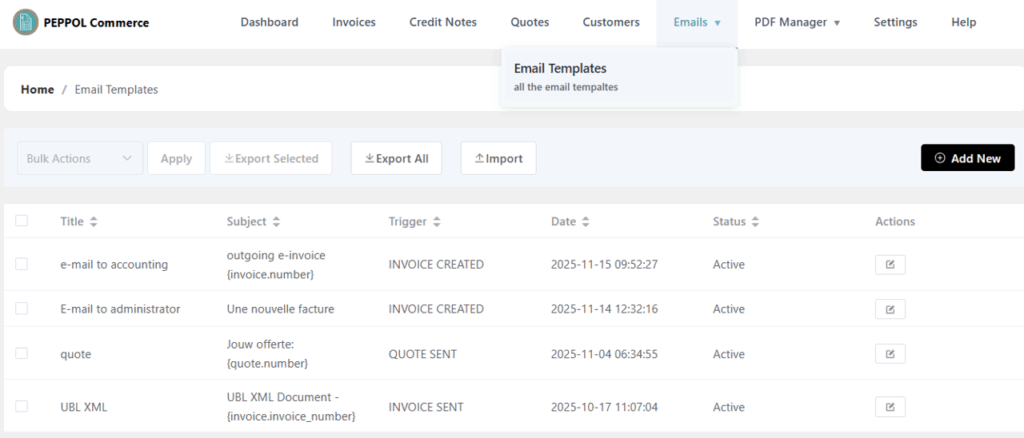
- Click ‘Emails‘ and select ‘Email Templates‘
- You will then see a list of existing email templates, as shown on the right in the snapshot.
- Click ‘Add new‘
- You will then see a new form, as shown on the right in the snapshot
- Provide a title – this is an administrative title in Peppol Commerce
- Provide an email title – this is the Subject of the e-mail
- Select the radio button ‘Send to customer‘
- Provide the correct e-mail address of your prospect or customer
- Click ‘Select Event Type‘ en select ‘Quote Sent – Customer notification‘ under the tab ‘Quote Events‘. Click ‘Confirm selection‘ to confirm
- Provide the quotation details in the body of the e-mail. Add individual quote details by using the available short codes.
- IMPORTANT! Add the short code {quote.shareable_link} to enable your customer to immediately accept (or decline) your quote
- Click ‘Enable template‘ to activate the template
- Click ‘Create Template‘


Once the Quote Settings are configured and the Email Template for quotations are created, you can create new quotations and configure the automation process from quotation, through approval, to invoice.
Create a new quotation #
Once the quotation email template is created and active, you can create new quotations. Below are the steps for creating a quotation.
- Click ‘Quotes‘ in the Peppol Commerce menu
- You will then see a list of existing quotations, as shown in the snapshot on the right
- Klik op ‘Add new‘ om een nieuwe offerte te starten
- You will then see the details screen for creating a quotation
- The Quotation numbering gets automatically generated
- Select the correct status
- Select the correct creation date and validity date
- In Customer Information you select the correct customer or prospect for whom you want to prepare the quotation
- Under Quote Items you can choose to add predefined products – via the Add Product button – or you can manually add items via the ‘Add Empty Item‘ button
- If necessary, add Notes and T&Cs in the respective fields
- Click ‘Create Quote’ to create the quote and automatically send it to the email address of the selected customer or prospect.


Approval process for your customer #
When the quotation has been created, your customer will automatically receive it by email
- Your customer receives the email with the quotation details
- Your customer clicks the ‘accept/decline‘ link at the bottom of the email
- This will open the quote in the browser, where your customer can approve the quote via ‘Accept Quote‘ (or reject it via the ‘Decline Quote‘ button)


Follow up on quotation status and create invoice #
You can track the status of quotes via the quote overview screen. If you don’t always have your website open, it might be helpful to create a separate email template that sends an email notification to the site administrator or another email address.
- Open Quotes in the Peppol Commerce menu
- Click the ‘View‘ icon to open the quote details screen
- In the Actions menu, select ‘Convert to invoice’ to automatically convert the quote to an invoice.
Just like other invoices in Peppol Commerce, this invoice is automatically sent via Peppol when the invoice status is changed.


